Install naisdevice 
Warning
The issues reported by Kolide must be addressed - these remediations have been vetted by the Nais team and should be followed. Depending on the issue, you might lose naisdevice connectivity if an issue is left unresolved for a sufficient length of time.
To make sure you are using naisdevice as securely as possible, make sure you are a member of the Slack channel #naisdevice. Important information will be published there. This also where you find us, if you need any help.
Device-specific installation steps 
- Go here, log in, and follow the prompts.
- If Kolide reports any issues, follow the instructions on how to remediate them. If a remediation required by Kolide makes you feel unsafe - feel free to ask in #naisdevice Slack channel.
-
- Install Homebrew unless you already have it.
- Run these commands in a terminal
brew tap nais/tap
brew trust nais/tap
brew install naisdevice- Go here, log in, and follow the prompts.
- If Kolide reports any issues, follow the instructions on how to remediate them. If a remediation required by Kolide makes you feel unsafe - feel free to ask in #naisdevice Slack channel.
-
- Install Scoop unless you already have it.
Scoop makes it possible to install and maintain programs from the command line.scoop bucket add nais https://github.com/nais/scoop-bucketscoop install naisdevice(you will be asked for administrator access to run the installer)
- Start naisdevice from the Start menu
- Go here, log in, and follow the prompts.
- If Kolide reports any issues, follow the instructions on how to remediate them. If a remediation required by Kolide makes you feel unsafe - feel free to ask in #naisdevice Slack channel.
-
- Go to github.com/nais/device.
- Download and run the newest
naisdevice.exeinstaller (you will be asked for administrator access when you run the installer). - Start naisdevice from the Start menu.
Warning
Using Gnome DE on latest Ubuntu LTS - only supported variant
- Go here, log in, and follow the prompts.
- If Kolide reports any issues, follow the instructions on how to remediate them. If a remediation required by Kolide makes you feel unsafe - feel free to ask in #naisdevice Slack channel.
-
- Install curl
sudo apt install curlNAIS_GPG_KEY="/etc/apt/keyrings/nav_nais_gar.asc"
curl -sfSL "https://europe-north1-apt.pkg.dev/doc/repo-signing-key.gpg" | sudo dd of="$NAIS_GPG_KEY"
echo "deb [arch=amd64 signed-by=$NAIS_GPG_KEY] https://europe-north1-apt.pkg.dev/projects/nais-io nais-ppa main" | sudo tee /etc/apt/sources.list.d/nav_nais_gar.list
sudo apt updatesudo apt install naisdeviceConnect Naisdevice through task/sys -tray icon 
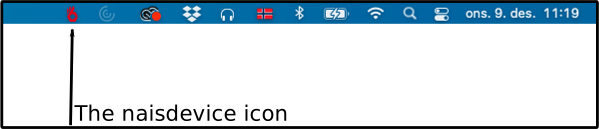
When you have started Naisdevice the Naisdevice icon appears in your Systray (where all your small program icons are located - see above picture for how it looks on Mac):
- Start the Naisdevice agent/app.
- Find your
naisdeviceicon (pictured above). - Left-click it and select
Connect. - Left-click the
naisdeviceicon again and clickConnect.- You might need to allow ~20 seconds to pass before clicking
Connectturns yournaisdeviceicon green.
-